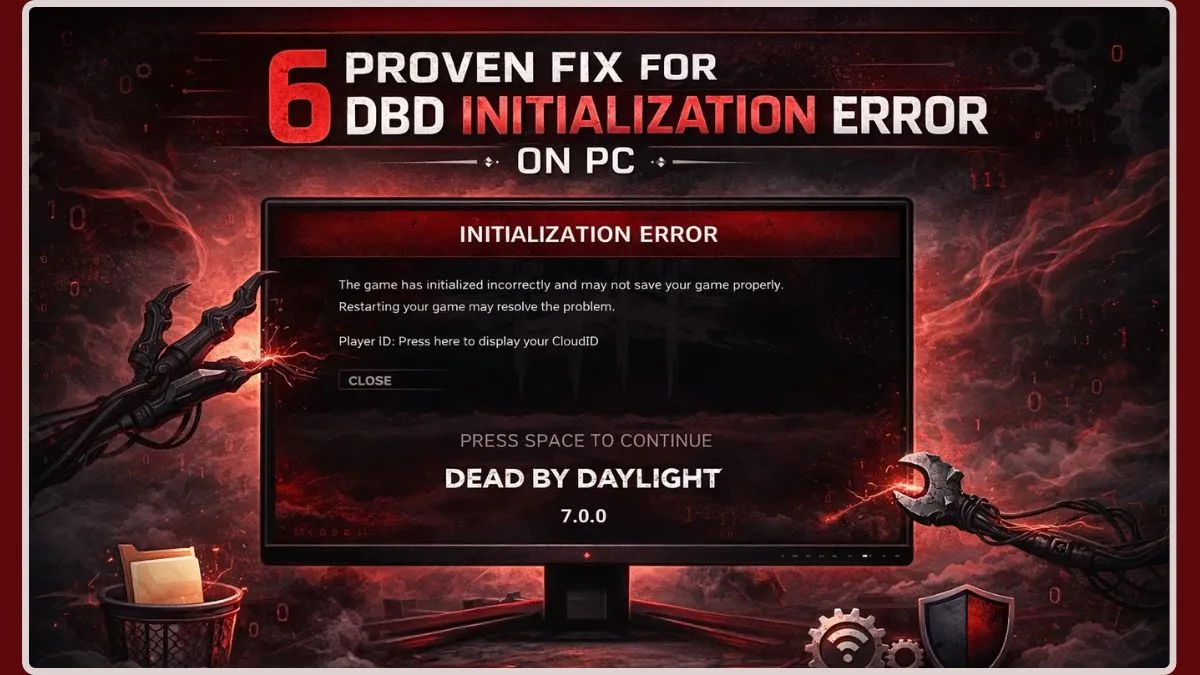
Understanding the Frustration: What is the DBD Initialization Error?
Few things are as frustrating for a gamer as eagerly launching your favorite title, only to be met with an error message that halts your progress before the main menu even loads. For Dead by Daylight players on PC, the notorious DBD Initialization Error is one such roadblock. This particular issue often presents itself with a message like: "The game has initialized incorrectly and may not save your game properly," immediately blocking you from entering the thrilling world of survivors and killers.
At its core, the DBD Initialization Error signifies that the game client or the underlying Unreal Engine has failed to properly load essential local data during startup. When you fire up Dead by Daylight, the game initiates a series of critical checks: verifying local configuration files, communicating with the ever-present Easy Anti-Cheat (EAC) system, and attempting to handshake with the matchmaking servers. If any link in this delicate chain breaks – be it due to corrupted files, a network hiccup, or a software conflict – the game throws this warning to prevent potential account data corruption and ensure system stability.
While often vague, the error is a clear signal that something on your system is preventing Dead by Daylight from setting up a proper game session. The good news is that while frustrating, it's usually solvable. This guide dives deep into proven methods, going beyond the basic restarts to get you back into the fog.
Initial Troubleshooting: The Essential First Steps for DBD Initialization Error
Before delving into advanced solutions, it's crucial to rule out the most common and easily fixable culprits for the DBD Initialization Error. Think of these as your diagnostic first aid kit.
Verify Game File Integrity
Corrupted or missing game files are arguably the most frequent cause of initialization errors. A quick scan can identify and repair these issues. The process varies slightly between Steam and Epic Games Store:
- For Steam Users:
- Open your Steam Library.
- Locate Dead by Daylight, right-click on it, and select Properties.
- Navigate to the Installed Files tab.
- Click on Verify integrity of game files...
- Steam will then scan your game installation and re-download any corrupted or missing files. This process can take a few minutes.
- For Epic Games Store Users:
- Open your Epic Games Launcher and go to your Library.
- Find Dead by Daylight, click the three dots next to it, and select Manage.
- Under the "Installation" section, click the Verify button.
- Epic Games will perform a similar check and repair if needed.
Once the verification is complete, try launching Dead by Daylight again.
Network and PC Reboot
Sometimes, the issue isn't with the game files themselves but with your connection or a temporary system glitch. A full reset can often clear these up:
- Restart Your Router/Modem: Unplug your internet router and modem from their power sources. Wait for about 30-60 seconds, then plug them back in. Allow them a few minutes to fully boot up and re-establish a connection before testing the game. This can resolve temporary IP conflicts or network desyncs.
- Restart Your PC: It's a cliché for a reason – restarting your computer often solves a myriad of software and hardware issues by clearing temporary data, resetting background processes, and refreshing system resources. Perform a full shutdown and restart, not just a sleep or hibernate.
Beyond the Basics: Advanced Solutions for DBD Initialization Error
If the initial steps haven't resolved your DBD Initialization Error, it's time to dig a little deeper. These advanced fixes target specific system components and software interactions that commonly trigger the error.
Update or Reinstall Graphics Drivers
Outdated or corrupted graphics drivers can cause a range of game launch issues, including initialization errors. Ensure your drivers are up-to-date, or consider a clean reinstallation:
- Update Drivers:
- NVIDIA: Use GeForce Experience or download the latest drivers directly from the NVIDIA website.
- AMD: Use AMD Radeon Software or download from the AMD website.
- Intel: Download from the Intel Support website.
- Rollback (If Recent Update Caused Issue): If the error started immediately after a driver update, you might consider rolling back to a previous stable version via Device Manager.
Repair or Reinstall Easy Anti-Cheat (EAC)
Given Dead by Daylight's reliance on Easy Anti-Cheat, failures with this software are a prime suspect for initialization issues. An error like "EAC client cannot be instantiated" points directly to this.
- Navigate to the EAC installation directory. For Steam, this is typically:
C:\Program Files (x86)\Steam\steamapps\common\Dead by Daylight\EasyAntiCheat. - Run EasyAntiCheat_Setup.exe as an administrator.
- From the dropdown menu, select Dead by Daylight and choose Repair Service.
- If repairing doesn't work, try uninstalling and then reinstalling the EAC service through the same setup utility.
Pro Tip: Ensure no other applications are interfering with EAC. Temporarily disabling your antivirus or firewall (with caution) can help diagnose if they are blocking EAC from launching correctly.
Delete Corrupted Local Game Cache (AppData)
This is a critical step, often overlooked, and frequently the solution when all else fails. Dead by Daylight stores important local configuration data in your AppData folder, which can become corrupted independently of your main game files.
- Press Windows Key + R to open the Run dialog.
- Type
%localappdata%and press Enter. This will open your Local AppData folder. - Look for a folder named DeadByDaylight or Dead by Daylight.
- Important: You can either delete this entire folder or rename it (e.g., "DeadByDaylight_OLD"). Renaming is safer as it allows you to restore it if necessary.
- Launch Dead by Daylight. The game will automatically recreate this folder with fresh, uncorrupted configuration files.
This action forces the game to generate new local user settings, which often resolves deep-seated initialization issues stemming from old, bad data.
Check Firewall and Antivirus Settings
Your security software can sometimes be overly aggressive, mistakenly identifying game processes or EAC as threats and blocking them. This is a common DBD Initialization Error cause.
- Temporarily Disable: As a diagnostic step, try temporarily disabling your Windows Defender Firewall and any third-party antivirus software. Launch the game. If it works, you've found your culprit.
- Add Exceptions: Re-enable your security software and add Dead by Daylight's executable (
DeadByDaylight.exe) and the Easy Anti-Cheat folder to their exclusion or whitelist.
Run Game as Administrator
Sometimes, insufficient permissions can prevent the game or EAC from accessing necessary files or system resources. Right-click on your Dead by Daylight shortcut or executable and select Run as administrator.
Flush DNS and Reset Network Adapter
Advanced network issues, even if your internet generally works, can block the game's initial handshake with servers.
- Flush DNS: Open Command Prompt as administrator and type
ipconfig /flushdns. Press Enter. - Reset Network Adapter: In Command Prompt (Admin), type
netsh winsock resetand press Enter, thennetsh int ip resetand press Enter. Restart your PC after performing these commands. - Wired Connection: If you're on Wi-Fi, try connecting via an Ethernet cable to rule out wireless interference or signal issues.
Reinstall Dead by Daylight (Last Resort)
If all else fails, a complete reinstallation of Dead by Daylight can be the ultimate solution. This ensures you have a fresh copy of every game file, eliminating any lingering corruption.
- Uninstall Dead by Daylight through your Steam or Epic Games library.
- After uninstallation, manually check and delete any remaining Dead by Daylight folders in your game installation directory and the
%localappdata%directory (as described above). This ensures a truly clean slate. - Reboot your PC.
- Re-download and install Dead by Daylight.
Conclusion: Get Back into the Fog
The DBD Initialization Error on PC can be a maddening experience, but with a systematic approach, it is almost always fixable. By moving beyond simple restarts and diving into verifying game files, updating drivers, ensuring Easy Anti-Cheat is functioning, and critically, managing your local game cache in AppData, you significantly increase your chances of resolving the issue. Remember, patience is key, and troubleshooting can sometimes involve a bit of trial and error. We hope this comprehensive guide has equipped you with the knowledge and steps to banish this annoying error and return to the thrilling chases and narrow escapes in Dead by Daylight.