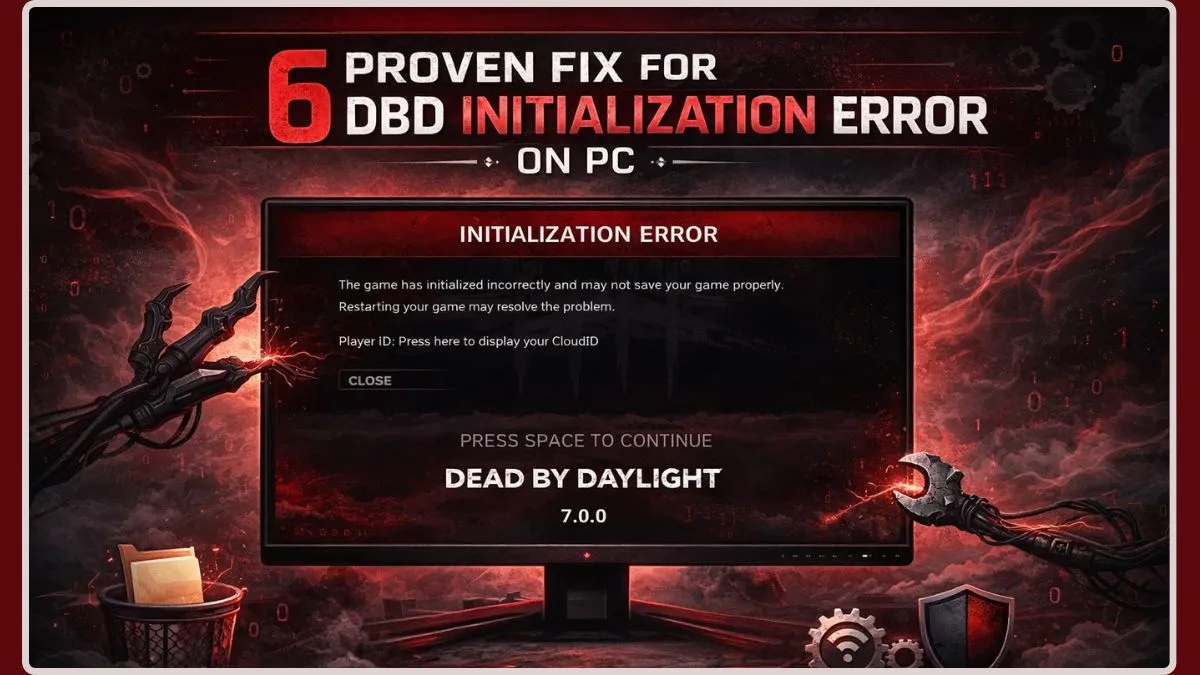
Understanding the Frustrating DBD Initialization Error
Few things are more disheartening for a gamer than encountering an error message that prevents them from diving into their favorite title. For fans of Dead by Daylight, the infamous "DBD Initialization Error" is a particularly unwelcome sight. This frustrating issue typically strikes right at launch, often displaying the message: “The game has initialized incorrectly and may not save your game properly.”
This isn't just a minor glitch; it's a complete roadblock, halting your progress whether you've just bought a new DLC, installed a major patch, or simply tried to log in for a quick match. The cycle of trying basic fixes like restarting, reinstalling, or verifying files, only to be met with the same error, can turn an evening of anticipated gaming into a test of patience. If this scenario resonates with your recent experiences, rest assured, you're in the right place. This comprehensive guide aims to move beyond generic advice, offering proven solutions and advanced troubleshooting techniques to get you back into the fog and escaping (or hunting) in Dead by Daylight as quickly as possible.
What Does the "DBD Initialization Error" Actually Mean?
To effectively tackle any problem, understanding its nature is crucial. The DBD Initialization Error signals that the game has failed to properly load essential local data during its startup sequence. In simpler terms, either the Unreal Engine (which powers Dead by Daylight) or the game client itself was unable to process your specific session request at that precise moment.
When you launch Dead by Daylight, a complex series of processes unfolds behind the scenes:
- The game attempts to verify your local configuration files.
- It communicates with Easy Anti-Cheat (EAC) to ensure a fair play environment.
- It initiates a handshake with the matchmaking servers to prepare for online play.
If any link in this critical chain breaks—whether due to corrupted local files, a firewall blocking a necessary connection, or a network desynchronization—the game throws the "initialized incorrectly" warning. This isn't just to tell you something went wrong; it's a protective measure, designed to prevent your account data from being overwritten with bad information or to ensure the game doesn't launch in a compromised state.
Common Causes Behind the DBD Initialization Error
Based on extensive player reports and technical analysis, the DBD initialization error typically stems from one or more specific underlying issues:
- Corrupted Local Game Files: This is, by far, the most prevalent culprit. Even if your main game installation appears intact, Dead by Daylight, like many modern games, stores additional temporary and configuration data locally on your PC. These files, often found in your hidden AppData folder, can become corrupted over time, preventing the game from initializing correctly.
- Easy Anti-Cheat (EAC) Failures: Dead by Daylight relies heavily on Easy Anti-Cheat to maintain game integrity. Sometimes, the game itself is fine, but the anti-cheat software fails to boot properly. You might even see a more specific message like "EAC client cannot be instantiated." This can happen if EAC files are corrupted, blocked by other software, or simply didn't start correctly with the game.
- Internet Connection Issues: While seemingly basic, an unstable or blocked internet connection can prevent the game from performing its initial server handshake or verifying necessary online components. A slow or intermittent connection can easily lead to a timeout during initialization.
- Outdated Graphics Drivers: Your graphics card drivers are essential for rendering game visuals. Outdated or corrupted drivers can cause various issues, including preventing the game from launching or initializing correctly due to conflicts with modern game engines.
- System Glitches or Conflicts: Occasionally, the error might be triggered by a temporary system glitch, a background application conflicting with Dead by Daylight, or even insufficient system resources at the time of launch.
Initial Troubleshooting Steps: Your First Line of Defense
Before diving into more complex solutions, it's wise to start with the most common and straightforward fixes. These often resolve the DBD initialization error for many players.
1. Verify Game File Integrity
This step checks for any corrupted or missing game files and replaces them, ensuring your installation is complete and healthy. The process varies slightly between platforms:
- For Steam:
- Open your Steam Library.
- Right-click on Dead by Daylight and select Properties.
- Go to the Installed Files tab.
- Click on Verify integrity of game files...
- For Epic Games Launcher:
- Open your Epic Games Launcher Library.
- Locate Dead by Daylight.
- Click the three dots next to the game title.
- Select Manage.
- Click on Verify.
The verification process may take a few minutes, after which it will automatically download and replace any problematic files.
2. Diagnose Your Internet Connection
A stable internet connection is vital for live-service games. Even if other applications work, a specific block or instability can affect Dead by Daylight.
- Restart Your Router/Modem: Unplug your router and modem from power for 30-60 seconds, then plug them back in. Allow them to fully restart and re-establish a connection.
- Reconnect Your PC: If you're on Wi-Fi, disconnect and reconnect. If wired, try unplugging and re-plugging your Ethernet cable.
- Test Connection: Try loading a few websites or another online game to confirm your connection is stable.
3. Perform a Full PC Restart
It's an age-old IT adage for a reason: restarting your computer can resolve a multitude of issues. A fresh boot clears temporary files, refreshes system processes, and can resolve minor software conflicts that might be interfering with Dead by Daylight's launch.
4. Update Your Graphics Drivers
Outdated graphics drivers are a common cause of game instability. Ensuring yours are up-to-date is a critical maintenance step.
- NVIDIA Users: Use the GeForce Experience application or visit the NVIDIA website to download the latest drivers.
- AMD Users: Use the AMD Radeon Software or visit the AMD website.
- Intel Users: Use the Intel Driver & Support Assistant or visit the Intel download center.
Always perform a "clean installation" if the option is available to remove old driver components thoroughly.
For a more in-depth walkthrough of these foundational solutions, check out our How to Fix DBD Initialization Error: Comprehensive PC Guide.
Advanced Troubleshooting & Beyond the Basics
If the initial fixes haven't resolved the DBD initialization error, it's time to delve deeper into your system. These solutions tackle more persistent or specific issues.
1. Clear Corrupted Local AppData Files (The "Often Works" Solution)
As mentioned, corrupted local game data in the AppData folder is a primary suspect. These files can become damaged during game crashes, updates, or even unexpected system shutdowns. Deleting them forces the game to regenerate fresh, uncorrupted versions upon next launch. This is often the solution that consistently works when everything else fails.
- Press
Windows Key + Rto open the Run dialog. - Type
%appdata%and press Enter. This will take you to the Roaming folder. - Navigate up one level to the
AppDatafolder (you should see Roaming, Local, LocalLow). - Go into the
Localfolder. - Look for a folder named DeadByDaylight (or similar, sometimes nested in a BHVR folder).
- Delete this folder entirely. Don't worry, these are temporary files, and the game will recreate them.
- Try launching Dead by Daylight again.
2. Repair or Reinstall Easy Anti-Cheat (EAC)
If you suspect EAC is the problem, directly addressing it can solve the initialization error:
- Navigate to your Dead by Daylight installation folder. This is usually located at:
- Steam:
C:\Program Files (x86)\Steam\steamapps\common\Dead by Daylight - Epic Games:
C:\Program Files\Epic Games\DeadByDaylight
- Steam:
- Inside the Dead by Daylight folder, look for an EasyAntiCheat folder.
- Open this folder and find the
EasyAntiCheat_Setup.exefile. - Run this executable as an administrator.
- Select Dead by Daylight from the dropdown menu (if applicable) and choose Repair Service. If repair fails or is unavailable, try Uninstall and then Install Service.
- Restart your PC after repairing or reinstalling EAC.
3. Check Firewall and Antivirus Settings
Security software can sometimes be overzealous, blocking game executables or network connections necessary for initialization.
- Temporarily Disable: As a test, temporarily disable your firewall (Windows Defender Firewall) and antivirus software, then try launching the game. If it works, you've found your culprit.
- Add Exceptions: Re-enable your security software and add Dead by Daylight's executable (
DeadByDaylight.exe) and the Easy Anti-Cheat folder to your firewall and antivirus exclusion lists.
4. Advanced Network Troubleshooting
Beyond simple router restarts, deeper network issues can cause the error.
- Flush DNS: Open Command Prompt as administrator and type
ipconfig /flushdnsthen press Enter. This clears your DNS cache. - Change DNS Servers: Consider using public DNS servers like Google DNS (8.8.8.8 and 8.8.4.4) or Cloudflare DNS (1.1.1.1 and 1.0.0.1) as they can sometimes offer more stable connections.
- Disable VPN/Proxy: If you're using a VPN or proxy service, disable it and try launching the game. These can interfere with game servers.
5. Perform a Clean Reinstallation (Last Resort)
If all else fails, a complete reinstallation of Dead by Daylight can sometimes be the only way to resolve deeply rooted file corruption or installation issues. Ensure you fully uninstall the game and manually delete any leftover files or folders before reinstalling.
When basic solutions fall short, delving into more intricate aspects of your system and network can often uncover the root cause. Learn more about these advanced methods in our dedicated article: Solve DBD Initialization Error on PC: Beyond Basic Solutions.
Prevention Tips for Future Errors
While errors can strike unexpectedly, adopting good PC maintenance habits can minimize the chances of encountering the DBD initialization error again:
- Keep Drivers Updated: Regularly check for and install the latest graphics and network drivers.
- Stable Internet: Ensure a stable and consistent internet connection, especially during game updates.
- Graceful Shutdowns: Always exit Dead by Daylight properly through the in-game menu, rather than force-closing the application or shutting down your PC while the game is running.
- System Maintenance: Periodically run disk cleanup and Windows integrity checks (like
sfc /scannowin Command Prompt) to keep your system healthy.
Conclusion
The DBD initialization error, with its ominous message, can be a major source of frustration for Dead by Daylight players. However, by systematically approaching the problem—from basic checks like verifying file integrity and restarting your network to more advanced solutions like clearing AppData files and repairing Easy Anti-Cheat—you stand an excellent chance of resolving the issue. Remember to be patient and methodical in your troubleshooting. With these comprehensive steps, you should be able to banish the initialization error and return to the thrilling cat-and-mouse gameplay that Dead by Daylight offers. Happy hunting (or surviving)!